
Azure DevOps
SmartGit provides integration with Azure DevOps, including:
- Azure DevOps Services (Cloud)
- Azure DevOps Server (On Premises)
Once integration is configured, the following integrated functionality is available from within SmartGit:
Setup
Azure DevOps integration is set up under Preferences, section Hosting Providers and under the Add button, select Azure DevOps.
This will the Add Hosting Provider dialog, prompting for an access token.
There are 2 ways to authenticate to Azure DevOps:
- Manually obtaining a Personal Access Token (PAT) from Azure DevOps (Recommended)
- Setting up a custom Azure DevOps Application for SmartGit (For Azure DevOps Server – on prem / Advanced Users).
Setup via Personal Access Token
You can connect SmartGit to Azure DevOps by providing a Personal Access Token (PAT).
You can create PATs in the Azure DevOps portal from User Settings -> Personal access tokens. To get there, you first need to open one of your Azure DevOps organizations. To create a suitable PAT for SmartGit:
- Open https://aex.dev.azure.com/me to see the organizations available for your account.
- Navigate to any of your organizations.
- Click User Settings in the top-right corner and select Personal access tokens.
- Create a new token and make sure that:
- Organization access is set to All accessible organizations, even if you currently use only one organization.
- Under Scopes, only Code -> Read & write is required. No additional scopes need to be enabled.
- The maximum validity period is 1 year.
- Copy the generated token and paste it into SmartGit.
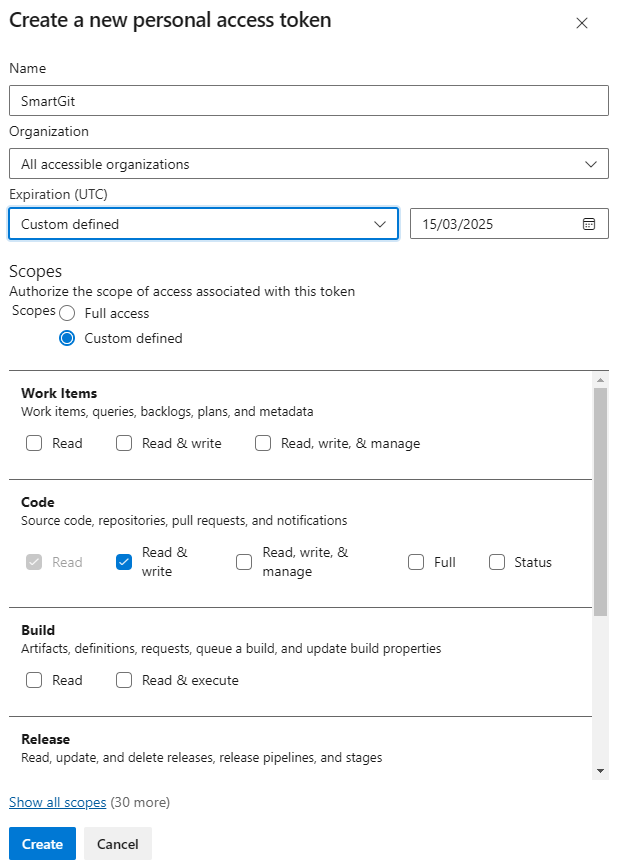
For additional details, see Microsoft’s Personal Access Token documentation.
Setup with Multiple Accounts
If you have multiple Azure DevOps accounts, you can run through the above procedure for each of your accounts. This requires to login for every account in your web browser before invoking Generate Token.
To have the OAuth token to work for multiple accounts, Git has to request credentials per-repository.
To check if the proper configuration is already set, invoke:
git pull
in your repository.
If Git request credentials only for dev.azure.com, try to configure:
git config --global credential.dev.azure.com.useHttpPath true
Then run git pull again to confirm that Git will now ask for the complete repository URL.
Setting up a Custom Azure DevOps Application for SmartGit
To get OAuth authentication working for Azure DevOps On-Premise instances or to avoid callbacks to https://www.syntevo.com you can set up a custom Azure DevOps application and configure SmartGit to use it for OAuth authentication.
Azure DevOps configuration
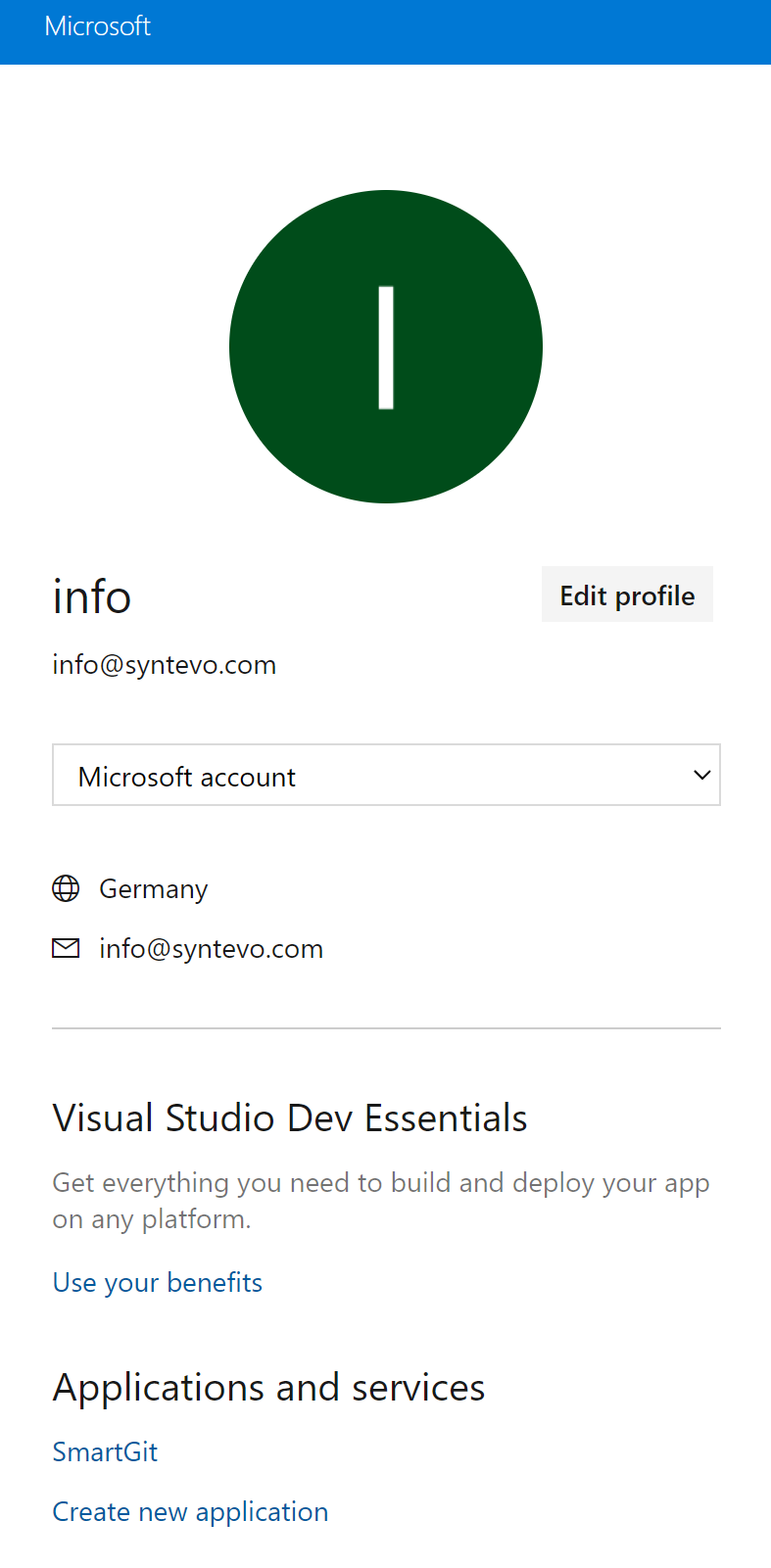
First, you have to create the application in your Azure DevOps profile. Click Create new application.
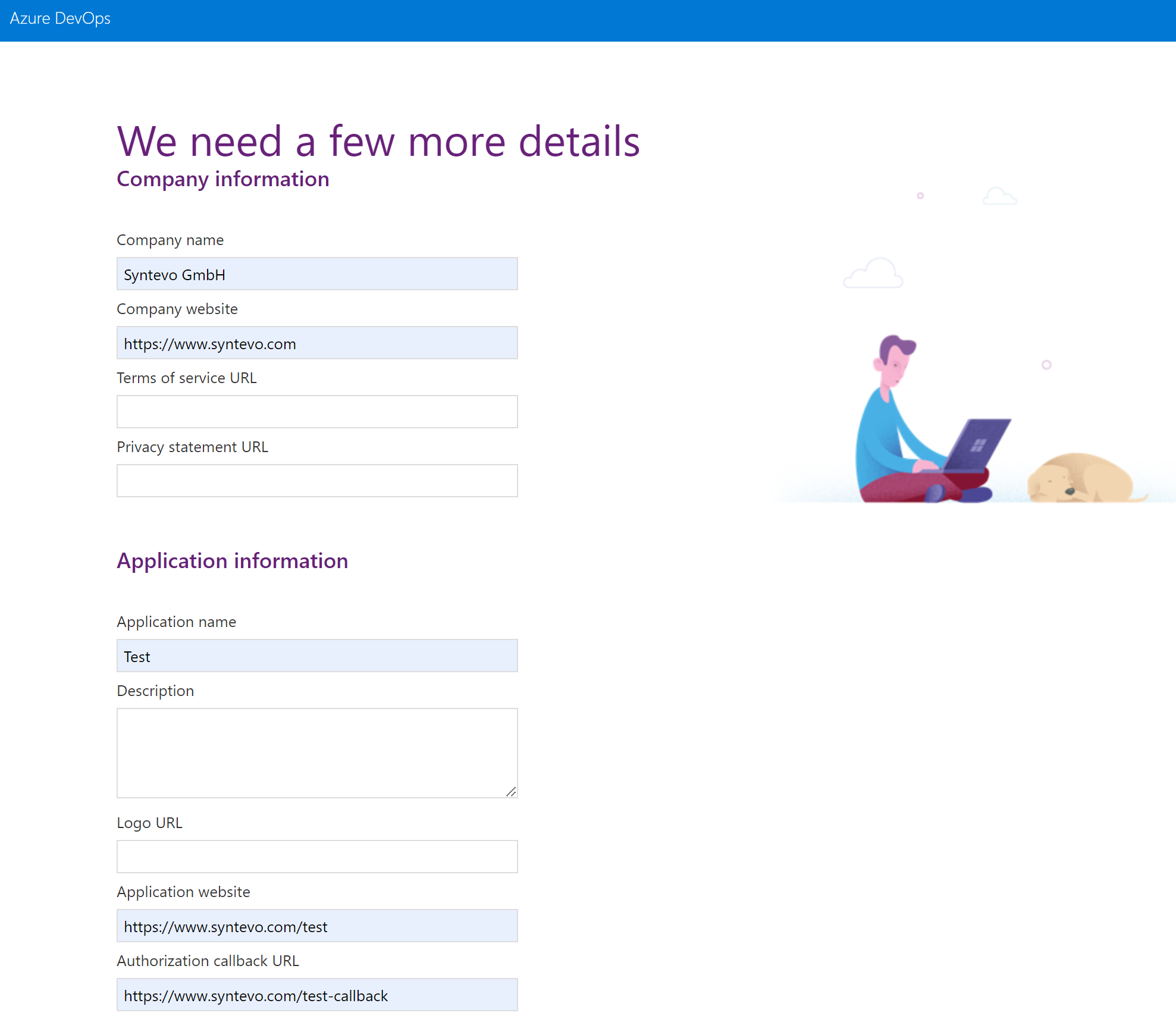
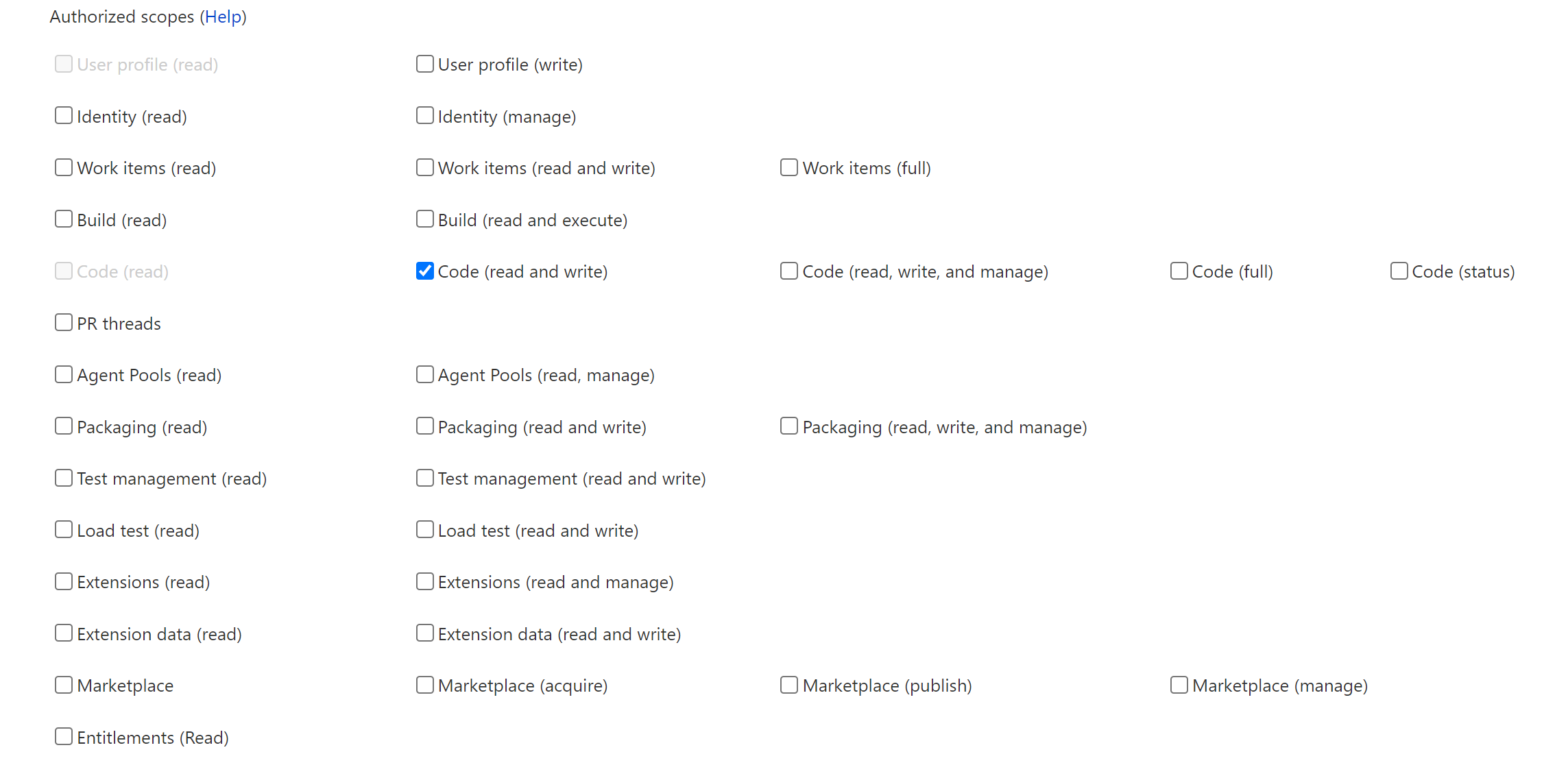
Then configure the application, with your custom Authorization callback URL and scopes Code (read and write) selected.
Once SmartGit initiates the OAuth authentication, Azure DevOps will return the initial code to the Authorization callback URL.
The code will be passed as URL parameter code.
This is what the user has to copy over to SmartGit’s Generate Token dialog.
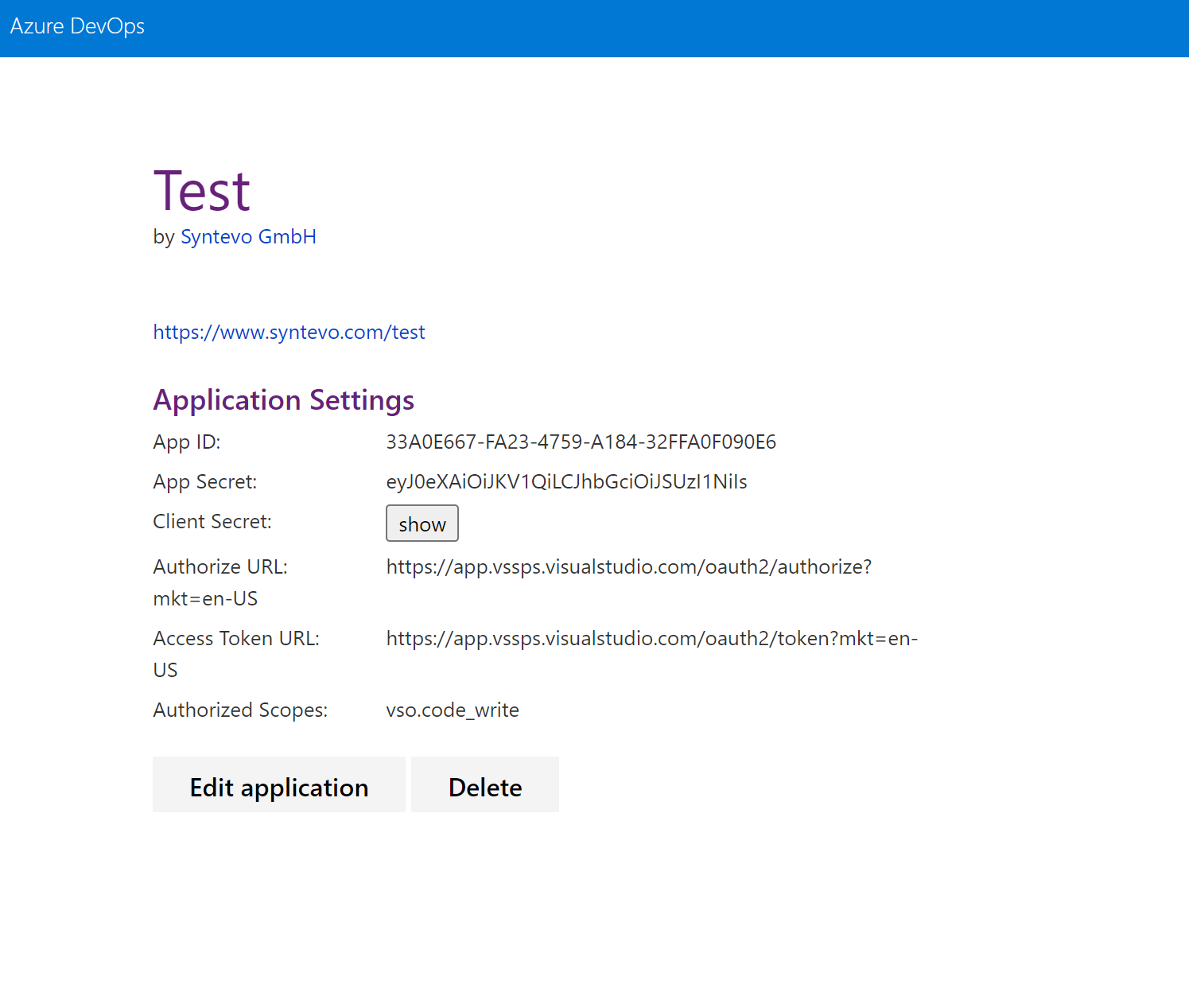
Finally, confirm with Create Application. Next, Azure DevOps will display the application details.
SmartGit configuration
Now SmartGit has to be configured to authenticate with this custom application.
Add following lines to smartgit.properties (in SmartGit’s settings directory):
smartgit.azure.oauth.appId=33A0E667-FA23-4759-A184-32FFA0F090E6
smartgit.azure.oauth.clientSecret=eyJ0eXAiOiJKV1QiLCJhbGciOiJSUzI1NiIsIng1dCI6Im9PdmN6NU1fN3AtSGpJS2xGWHo5M3VfVjBabyJ9.eyJjaWQiOiIzM2EwZTY2Ny1mYTIzLTQ3NTktYTE4NC0zMmZmYTBmMDkwZTYiLCJjc2kiOiJkNDAwYzIxYy02ODZiLTQ5NTctODg4Zi1kMTI5ZmY3MTc4ZWMiLCJuYW1laWQiOiJlMDY1YmIyYi0wMjc4LTYwMWMtOTc4Ny0zMGI2NGY0ZWI2MDMiLCJpc3MiOiJhcHAudnN0b2tlbi52aXN1YWxzdHVkaW8uY29tIiwiYXVkIjoiYXBwLnZzdG9rZW4udmlzdWFsc3R1ZGlvLmNvbSIsIm5iZiI6MTY1MTgzMTY1OCwiZXhwIjoxODA5NTk4MDU4fQ.jCcLR77IZtl56KS9KS39hrtHPm4d4HtUyCu_Xv4c9V1zNSuXMRTL49TP02OHoP6aXqtq7PWhKxEMBXTYdGMCPBMXoxLBPwEJTW7wCWTQH9AFHikZnpeqBjYwO18a7vg7u69Hm-kp-X_0-Vsdg1rTLojM-DwyAn0Ceb8FqYdnLXzgXl7D6c5Ux6GNVt5oA8wFDiQIEq-9paPgE2FbJKQ7yUroODNC4G7WzVsp41UKU8BOIN2YQgmMA8QSXdhxQsHfwgdVSrHCKkiGTBznJCXhmZkKkUkJ9QikXQ8s3FHBDormbJtT_m3Yx8fn24Vrm0_b7WV-Y9HdoZi1selRHTZU9Q
smartgit.azure.oauth.appCallback=https://www.syntevo.com/test-callback
Note, that clientSecret is actually the Client Secret from Azure DevOps, not the App Secret!
Repository access using “Generate Git Credentials”
If you are only interested in accessing your Azure DevOps Git repositories, but you don’t need the additional Azure DevOps Hosting Provider functionality (e.g. managing pull requests in SmartGit), you may open the Azure website, navigate to your Azure DevOps repository, invoke Clone and then Generate Git Credentials. When SmartGit asks you for User Name and Password enter these credentials.