
AI Commit Annotations
SmartGit’s AI Annotations are a powerful feature that allows custom extension of SmartGit’s functionality.
Each AI Annotation instructs SmartGit to run a custom AI action, either interactively or in the background, using one or more selected (or inferred) diffs in the commit history as input.
The output of the AI generated annotations can be displayed interactively in the UI or linked to the relevant commit(s) using SmartGit’s Notes capabilities.
Some examples of what AI Commit Annotations can do:
- Describe the contents of a diff (e.g., the latest commit on a branch or the diff between 2 commits).
- Analyze a commit and provide feedback or descriptive metadata about quality factors introduced in the code.
- Instruct the LLM to generate icons to augment the visualization of Notes.
Because AI annotations can run in the background, SmartGit can automate checks while you work. The AI’s responses are added to Git Notes, which can be viewed in the Graph View of the Log Window and Standard Window.
Getting Started
The AI Annotations feature leverages both SmartGit Notes and the common AI configurations used by all SmartGit AI features. Before using AI Annotations, it’s recommended to familiarize yourself with:
To add a new AI Commit Annotation command in SmartGit, define a new configuration section for each AI-Annotation you want to set up.
Configuration options include:
- Standard LLM configuration settings.
- The
modein which the AI Annotation should run – either interactively, showing the output on the UI, or in the background, by appending the results to Git notes. - The prompt to be executed by the AI when the annotation command is invoked, along with additional context such as the contents of the diff and commit message.
- For background annotations:
- The Notes refs where the annotation outputs should be stored.
- Any additional Notes processing (title, options, visual representation in SmartGit’s Graph View).
For interactive annotations that are not using diff = pair, selecting multiple commits and configuring both notesRef and notesTitle makes SmartGit show Annotate Commits and offer Run in Background to save the results to the configured notes ref.
Example - Analyzing the difference between two selected diffs and displaying the difference interactively
Adding the [smartgit-ai-commit-annotation "Describe Diff"] section below to your Git config creates a new Describe Diff command in the Graph context menu when exactly two commits are selected in the Graph View of the Log Window or the Standard Window.
This command uses an existing LLM configuration called openai (tested on gpt-4.1 on OpenAI).
[smartgit-ai-llm "openai"]
	type = openai
	model = gpt-4.1
	url = https://api.openai.com/v1
        apiKey = <ApiKey>

[smartgit-ai-commit-annotation "Describe Diff"]
	llm = openai
	maxDiffSize = 131072
	mode = interactive
	diff = pair
	title = Describe Diff
	prompt = Analyze the following Git diff between two commits and summarize the major changes between the commits.\n\
                Do not include the original diff or any reasoning in the response.\n\
                \n\
Note
With diff = pair, if neither selected commit is an ancestor of the other, SmartGit will prompt you to choose the diff direction.
You can swap the order if needed.
If SmartGit cannot determine the direction automatically, it opens a dialog titled with the annotation title.
The dialog shows the heading Choose the diff direction, the read-only fields Old (From) and New (To), and a Swap button.
Example - Scanning commits for TODO comments and annotating the commit with a note and an icon
Adding the following [smartgit-ai-commit-annotation "Check For Todos"] section to your Git config will add a new Check Todos command to the Graph context menu when a commit is selected in the Graph View of the Log Window or the Standard Window.
The same LLM configuration is used as in the previous example.
After saving the configuration, if you run the Check Todos AI annotation command, SmartGit will instruct the configured LLM to scan the selected commit for todo comments.
An appropriate thumbs up (U+1F44D) or thumbs down (U+1F44E) icon will be displayed (in place of the standard ‘Note’ icon), and a Git note will be added to the commit, showing the file location(s) of any TODO comments found.
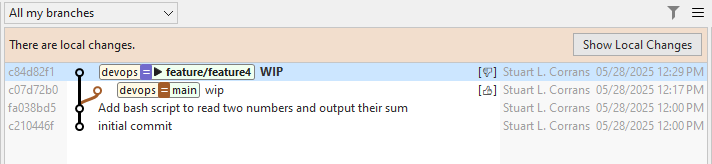
[smartgit-ai-commit-annotation "Check For Todos"]
	llm = openai
	notesGraphMessageRegex = ^(.)
	maxDiffSize = 131072
	mode = background
	diff = perCommit
	title = Check Todos
	notesTitle = Todos
	notesRef = todocheck
	prompt = Analyze the following Git diff, and if any TODO comments are found,  \n\
                respond with the unicode character U+1F44E. \n\
                List the filename and line number of each TODO found. \n\
                If no TODO comments are found, respond with the unicode character U+1F44D,  \n\
                and the description "No todos found". \n\
                Do not include the original diff or any reasoning in the response.\n\
                \n\
For background annotations, notesTitle controls the note title shown by SmartGit and defaults to the annotation title if you omit it.
The notesGraphMessageRegex setting controls what SmartGit renders in the Graph for the note.
SmartGit uses the first capture group, so ^(.) shows the first character of the generated note instead of the default note marker.
Tip
- Add a prefix such as
ai/to thenotesRefsetting to distinguish AI-generated notes from ‘standard’ Git Notes clearly. - As with other SmartGit AI features, move any shared configuration (like
smartgit-ai-llmdefinitions or reusablesmartgit-ai-commit-annotationcommands) to your global~/.gitconfigfile for use across multiple repositories. - By default, SmartGit sets a small
maxDiffSizeto avoid sending large commits to LLMs, which may result in unexpected expenses. Adjust this value as needed. - Rerunning the same background AI Annotation on a commit will replace the previous note.
- AI Notes can be removed just like standard Git notes.
- Avoid using the same notes
reffor different annotation categories, and do not mix AI-generated Notes refs with manually created Git Notes.